Tinycap
Record your screen as small MP4s, WebMs or GIFs from the menu bar
About Tinycap.
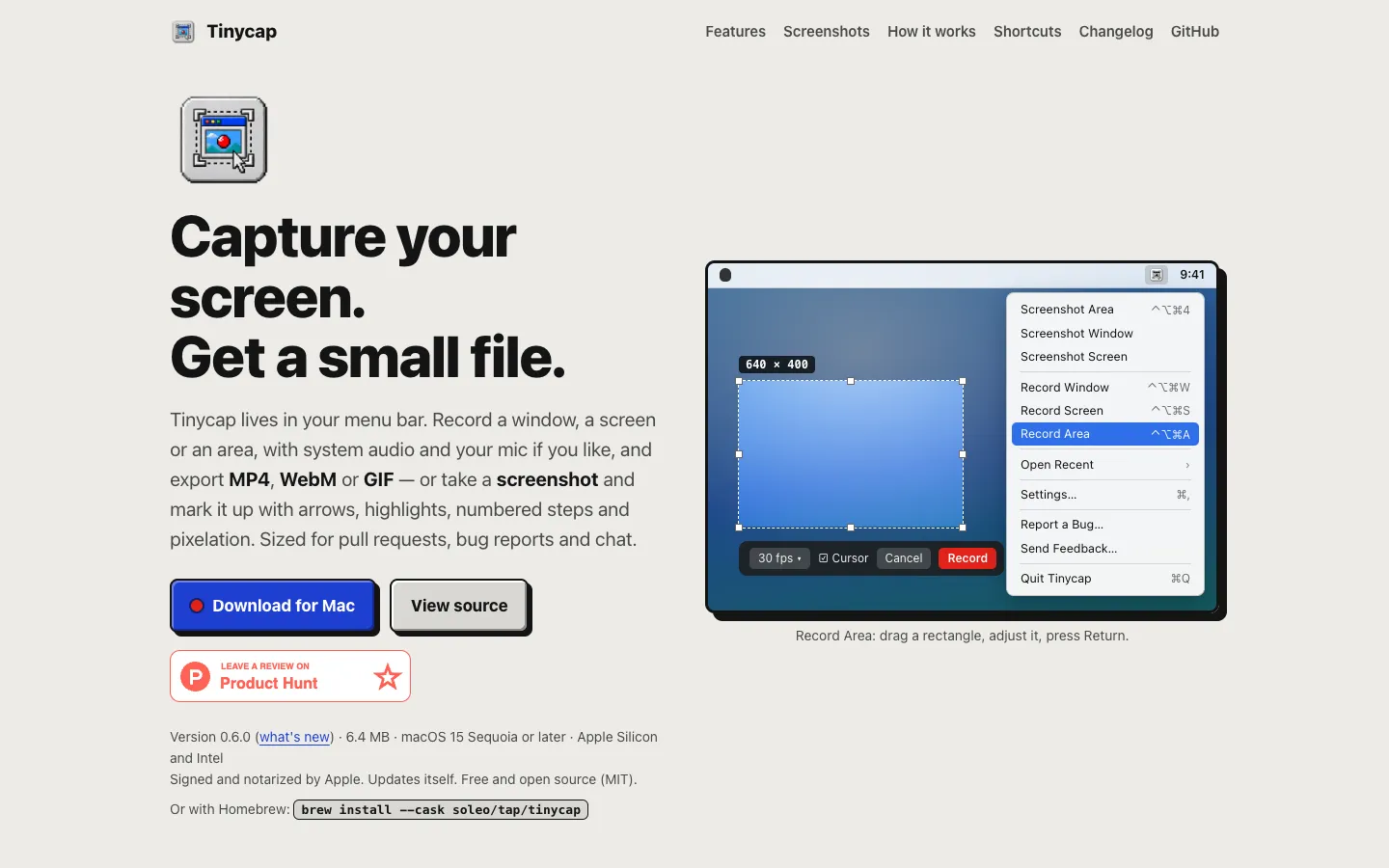
Tinycap records your screen and takes screenshots from the Mac menu bar, and saves them as small files. Record a window, a whole screen or an area you drag, trim the clip, and export it as MP4, WebM or GIF, with an estimate of the file size before you save.
Screenshots open in an editor where you can add arrows, text, highlights and numbered steps, or pixelate an API key before you share the image. The files are sized for pull requests, bug reports and chat apps with upload limits.
Features.
Window, screen or area: Hover to pick a window, click a display, or drag a rectangle with a live size readout and resize handles. Window recordings follow the window when it moves. You can add a 3-2-1 countdown and yellow rings around your clicks.
System audio and microphone: Record what your Mac plays, talk over it with any microphone, or both. The microphone goes through the same echo cancellation as FaceTime, so sound from your speakers isn't recorded twice. Sound is off until you turn it on.
Preview and trim: A preview opens when you stop. Drag the trim handles or press I and O at the playhead to cut the start and end.
MP4, WebM or GIF: MP4 as H.264 or HEVC with sound, mixed into one track or kept as separate tracks for a video editor. WebM uses VP9. GIF has Small, Balanced and High presets. WebM and GIF are silent.
Size before you export: Tinycap encodes a short sample to estimate the file size. For GIF, "Fit under 10 MB" steps the settings down until the file fits.
GIFs that stay small: Its own GIF encoder stores only what changed between frames, keeps one color palette so colors don't flicker, and merges frames where nothing moved.
Name your files: Type a name in the export panel or screenshot editor, use Export As… (⇧⌘S) to pick a name and folder, or rename a recording after export. If a name is taken, you choose Keep Both or Replace. New in version 0.6.0.
Screenshot editor: Arrows that bend, rectangles and ellipses, text with an optional background, a pen, a highlighter and numbered steps that renumber themselves when you delete one. Each tool has a one-letter shortcut.
Pixelate for real: The export replaces the pixelated pixels, so the hidden text can't be recovered from the file. Screenshots save as PNG or JPEG with no location or device data.
Floating thumbnail: After a screenshot, a thumbnail waits in the corner. Click it to edit, drag it into any app, or leave it and it's saved.
Out of your way: No Dock icon and no window until you need one. Global shortcuts you can change start each capture, and the menu bar icon turns into a timer you click to stop.
Nothing lost: A recording you didn't export because the app quit or crashed is offered again at the next launch.
Stays on your Mac: No accounts, no uploads and no telemetry. The app is sandboxed, and its only network request is a daily update check that you can turn off.
Pricing.
Tinycap is free and open source under the MIT licence.
Source code on GitHub
Download from the website or install with Homebrew
The direct download updates itself
What users love.
Window capture One early user likes recording a single window while switching between the web app they're building and a test account.