About MultiScreenDock.
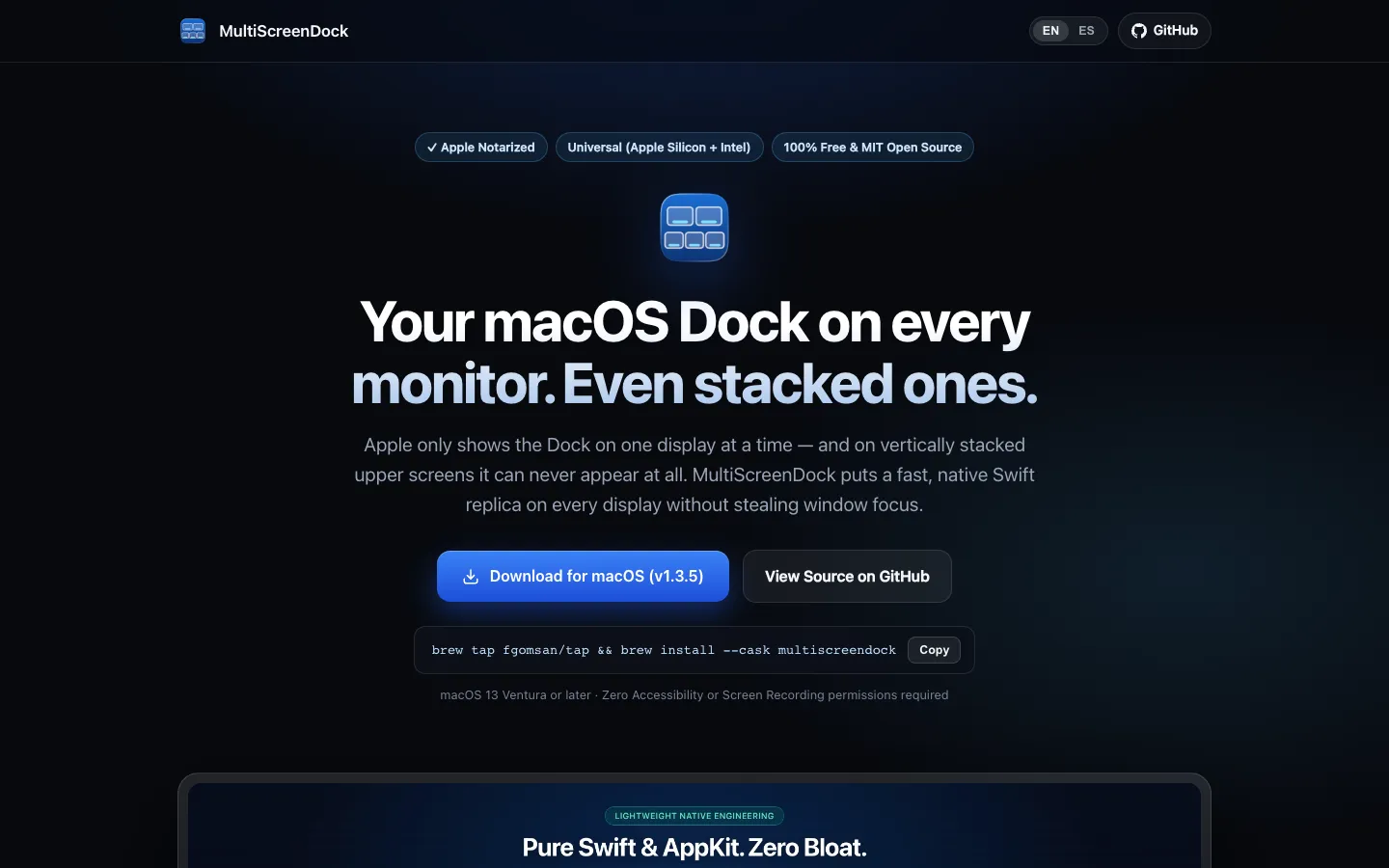
MultiScreenDock puts a live copy of your Mac's Dock on every extra monitor. macOS shows the Dock on only one display at a time, and never on a screen stacked above another, so the app draws its own bar at the bottom of each display with your pinned apps, running apps, folders and Trash.
The bar follows your real Dock as it changes. It slides up when you rest the pointer at the bottom edge, or stays visible if you prefer, and it never takes focus from the app you're working in.
Features.
Live sync with your real Dock: The bar shows the same items as your Dock: Finder, pinned apps, running apps that aren't pinned (with a dot, brighter for the app in front), pinned files and folders, and the Trash. It updates as you pin or open apps, and Sync Dock Icons Now (⌘R) refreshes it on demand.
Stacked displays: On a monitor that sits above another, moving the pointer down crosses into the lower screen instead of hitting an edge, which is why Apple's Dock can't appear there. MultiScreenDock waits a little longer at that edge before showing the bar, so a quick pass down to the lower screen doesn't pop it open.
Two visibility modes: Auto-hide shows the bar when you rest the pointer at the bottom edge, or you can keep it always visible. An optional small pill marks the bottom center while it's hidden, and you can choose how quickly it reacts.
Stays out of the system Dock's way: Your main display is left to Apple's Dock by default, and the extra bar hides on any screen where the real Dock is showing. You can also have Apple's own Dock auto-hide with one click.
Per-display control: Turn the bar on or off for each monitor. The choice is remembered across restarts, even for two identical monitors.
Clicks and drag and drop: Click to open or switch to an app, Command-click to show it in Finder, and right-click for Hide, Quit, New Finder Window or Empty Trash. Drop files on an app to open them with it, on a folder to move them in, or on the Trash.
A panel that does not take focus: Hovering over the bar or opening its menu leaves the app you're typing in active. The icon under the pointer grows slightly, and the bar has a dark glass look in Light and Dark Mode.
Icon size and full screen: Pick 28, 36, 44 or 52 point icons, scaled down on narrow screens. The bar can also show over full-screen apps.
8 languages: English, Spanish, French, German, Portuguese, Italian, Japanese and Simplified Chinese, picked up from macOS or switched from the menu.
Built-in updates: It checks for a new version once a day (you can turn this off) and updates itself in one click after checking the download's Apple signature. A menu item opens a pre-filled bug report on GitHub.
Few permissions: It never asks for Accessibility or Screen Recording access. macOS asks for Automation permission only when you use a Finder action or auto-hide Apple's Dock. There's no telemetry.
Limits: The bar sits on the bottom edge only. It has no bounce, notification badges, download progress, folder stacks or Dock spacers, and a folder opens in Finder.
Pricing.
MultiScreenDock is free and open source under the MIT licence.
No ads, telemetry or paywalls
Source code on GitHub
Optional tips through Buy Me a Coffee